When you load a FusionCharts chart inside your movie clip and view it on the web (on a narrow bandwidth), there are chances that you might get to see the "chart loading progress bar" or the "data loading progress bar" (with their respective text). Now, FusionCharts progress bar and the text is rendered in a light shade of grey color (as shown below).
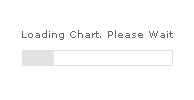
However, this grey color might not go well with the flash application/movie that you intend to use FusionCharts in. However, the good news is that FusionCharts lets you control and change even those parameters too. Here, we'll see how to change the loading elements cosmetics.
The pre loader has a lot of cosmetic properties that can be defined.
Let's first see a list of elements that can be changed and the variables
that we'll utilize to change them:
- PBarHeight - Required height for the progress bar.
- PBarWidth - Required width for the progress bar.
- PBarBorderColor - Border color of the progress bar
- PBarBorderThickness - Border thickness of the progress bar
- PBarBgColor - Progress bar background color (fill color of the bar)
- PBarTextColor - Color of the text
- PBarLoadingText - The actual loading text to be displayed
- XMLLoadingText - Text to be displayed while the XML data is downloading
As you can see above, you can virtually change all the visual properties of the progress bar and the text. Let's quickly get into an example and see how to change the cosmetics while loading FusionCharts charts into our flash movies.
We'll get back to our "International Students" example (the very first one!) and change a variety of the aforementioned properties. Create a new folder LoadFC>LoadingCosmetics and copy BaseMovie.fla, Data.xml and FC_2_3_MSLine.swf from our first example to this folder.
To encapsulate, we'll be making the following changes:
- Increase the progress bar height to 25 pixels.
- Change the grey color to a soothing blue color.
- Change the loading text to "One moment please..."
To do this, just open the ActionScript panel for Actions Layer's Frame and modify the code to following:
createEmptyMovieClip("FusionChartsHolder", 100);
//Set the loading bar cosmetics.
_root.PBarHeight = 25;
_root.PBarBorderColor = "00CCFF";
_root.PBarBorderThickness = 2;
_root.PBarBgColor = "C6F3FF";
_root.PBarTextColor = "00CCFF";
_root.PBarLoadingText = "One moment please...";
//Load the chart
FusionChartsHolder.loadFusionCharts("FC_2_3_MSLine.swf", 101, "Data.xml", null, 400, 300, 200, 90);
//Stop here
stop();
Note the code in bold above. This is where we change the loading bar cosmetics - this has be done before we invoke loadFusionCharts method.
When you now load the chart, you'll get the following progress bar: